Ref video link: https://drive.google.com/file/d/1Rv89BoU9EDqjdRkDDjxwCm0iMIdu1eKs/view?usp=sharing
Ref document(Aurora): https://afterlogic.com/docs/aurora/developers-guide/creating-hello-world-app
Prerequisite:
You should have orion app up and running
Step 1:
Make copy of your existing orion in same directory
cp -r /opt/orion/ /opt/orion_temp
Step 2:
Download sample app from afterlogic site extract and copy in temp directory
cd /tmp/
wget https://afterlogic.com/files/HelloWorldWebclient.zip
Extract/Unzip the same and copy in /opt/orion_test/modules
unzip HelloWorldWebclient.zip
cp /tmp/HelloWorldWebclient /opt/orion_temp/modules/
Rename the directory if required
mv /opt/orion_temp/HelloWorldWebclient /opt/orion_temp/YourAppWebclient
Step 3:
Run the following command in orion_temp root
cd /opt/orion_temp/
npm run js:build
Once you build this you will see new file with hash in /opt/orion_temp/static/js/YourAppWebclient.app.hash.js
ls -larth /opt/orion_temp/static/js/YourAppWebclient.app.hash.js
mv /opt/orion_temp/static/js/YourAppWebclient.app.hash.js /opt/orion_temp/static/js/YourAppWebclient.app.js
Step 4:
Copy this generated javascript file and YourAppWebclient folder in original orion directory
cp /opt/orion_temp/static/js/YourAppWebclient.app.hash.js /opt/orion/static/js/YourAppWebclient.app.js

cp -r /opt/orion_temp/modules/YourAppWebclient /opt/orion/modules/
Step 5:
To add the newly created app in orion you need to enable it from /opt/orion/static/js/app.js
/******/     // This function allow to reference async chunks
/******/     __webpack_require__.u = (chunkId) => {

+          if(chunkId == 1001) {
+            return "YourAppWebclient.app.js"
+          }
NOTE: here 1001 is our custom chuck id we will use Netcore custom chunk id from 1001
Add following changes also in same file /opt/orion/static/js/app.js
    if (window.aAvailableModules.indexOf('VerticalTabsbarPinButton') >= 0) {
      oAvailableModules['VerticalTabsbarPinButton'] = __webpack_require__.e(/*! import() | VerticalTabsbarPinButton */ 60).then(__webpack_require__.t.bind(__webpack_require__, /*! modules/VerticalTabsbarPinButton/js/manager.js */ "3P7X", 23)).then(function (module) {
        return module["default"];
      });
    }

+   if (window.aAvailableModules.indexOf('YourAppWebclient') >= 0) {
+       oAvailableModules['YourAppWebclient'] = __webpack_require__.e(1001).then(__webpack_require__.t.bind(__webpack_require__, "1001", 23)).then(module => module.default);
+   }
Step 6:
Once this is done you need to modify /opt/orion/static/js/YourAppWebclient.app.js
vim /opt/orion/static/js/YourAppWebclient.app.js

//Change 1: change the number to 1001
(self["webpackChunkafterlogic_aurora_platform"] = self["webpackChunkafterlogic_aurora_platform"] || []).push([[1001],{

//Change 2: change the existing Id to 1001
/***/ "1001":
/*!***************************************************!*\
  !*** ./modules/HelloWorldWebclient/js/manager.js ***!
  \***************************************************/
/***/ ((module, __unused_webpack_exports, __webpack_require__) => {

//Change 3: change the route / url if required
sHash = 'helloworld';

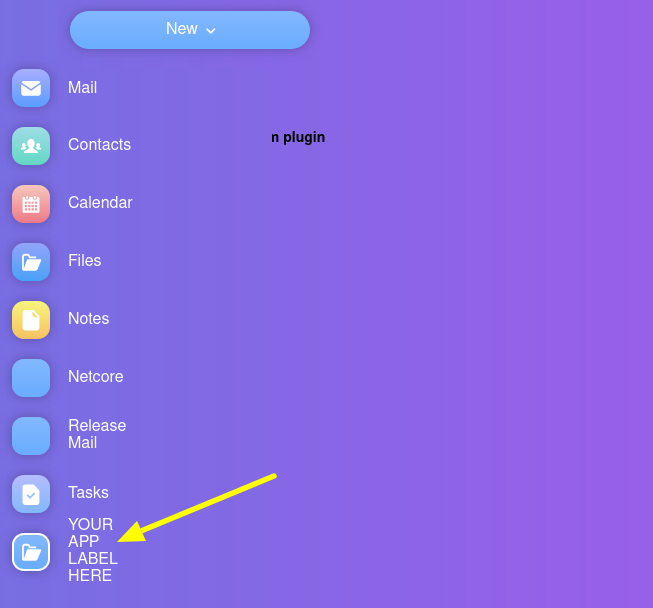
//Change 3: change app label
      getHeaderItem: function getHeaderItem() {
        var CHeaderItemView = __webpack_require__(/*! modules/CoreWebclient/js/views/CHeaderItemView.js */ "cR1d");
        return {
          item: new CHeaderItemView("YOUR APP LABEL HERE"),
          name: sHash
        };
      }

//Change 4: change browser title
/**
   * Text for displaying in browser title.
   */
  this.browserTitle = ko.observable("YOUR BROWSER TITLE HERE");
  App.broadcastEvent('HelloWorldWebclient::ConstructView::after', {
    'Name': this.ViewConstructorName,
    'View': this
  });
Step 7:
To apply icon for newly added app add following code snippet at end of file in
/opt/orion/static/styles/themes/NetcoreNext/styles.css
.tabsbar > .content > .item.helloworld .link::before {
  background-image: url("./images/files.svg");
}
Step 8:
Once this is done you can edit html template /opt/orion/modules/HelloWorldWebclient/templates/MainView.html
<div class="screen">
  <iframe style="width: 100%;height: 100%;border-radius: 18px !important;border: 1px solid !important;box-shadow: 4px 4px 8px 0px !important;" src="yourApp.php" title="YourApp Title Here">
  </iframe>
</div>
NOTE: yourApp.php should be in document root /opt/orion/yourApp.php
Step 9:
Login to orion panel from browser and hard refresh to load latest js and css
Troubleshoot: In case you are not able to see latest app then you can clear the cache. change the data directory if required
rm -rf /opt/auroralatest980-data/data/cache/*
Step 10: Clean up
Remove temp orion directory
rm -rf /opt/orion_temp/
Sep 11: To disable module create config file with disabled flag
vim /opt/auroralatest980-data/data/settings/modules/YourAppWebclient.config.json
{
    "Disabled": [
        true,
        "bool",
        null,
        "Setting to true disables the module"
    ]
}
NOTE: data settings path /opt/auroralatest980-data/data/settings/ you will find in orion root directory inc_settings_path.php
# cat /opt/orion/inc_settings_path.php
<?php
$dataPath = '/opt/auroralatest980-data/data';Was this article helpful?
That’s Great!
Thank you for your feedback
Sorry! We couldn't be helpful
Thank you for your feedback
Feedback sent
We appreciate your effort and will try to fix the article